
Team & Organization
Set up your organization, invite team members, manage roles, and collaborate on bots.
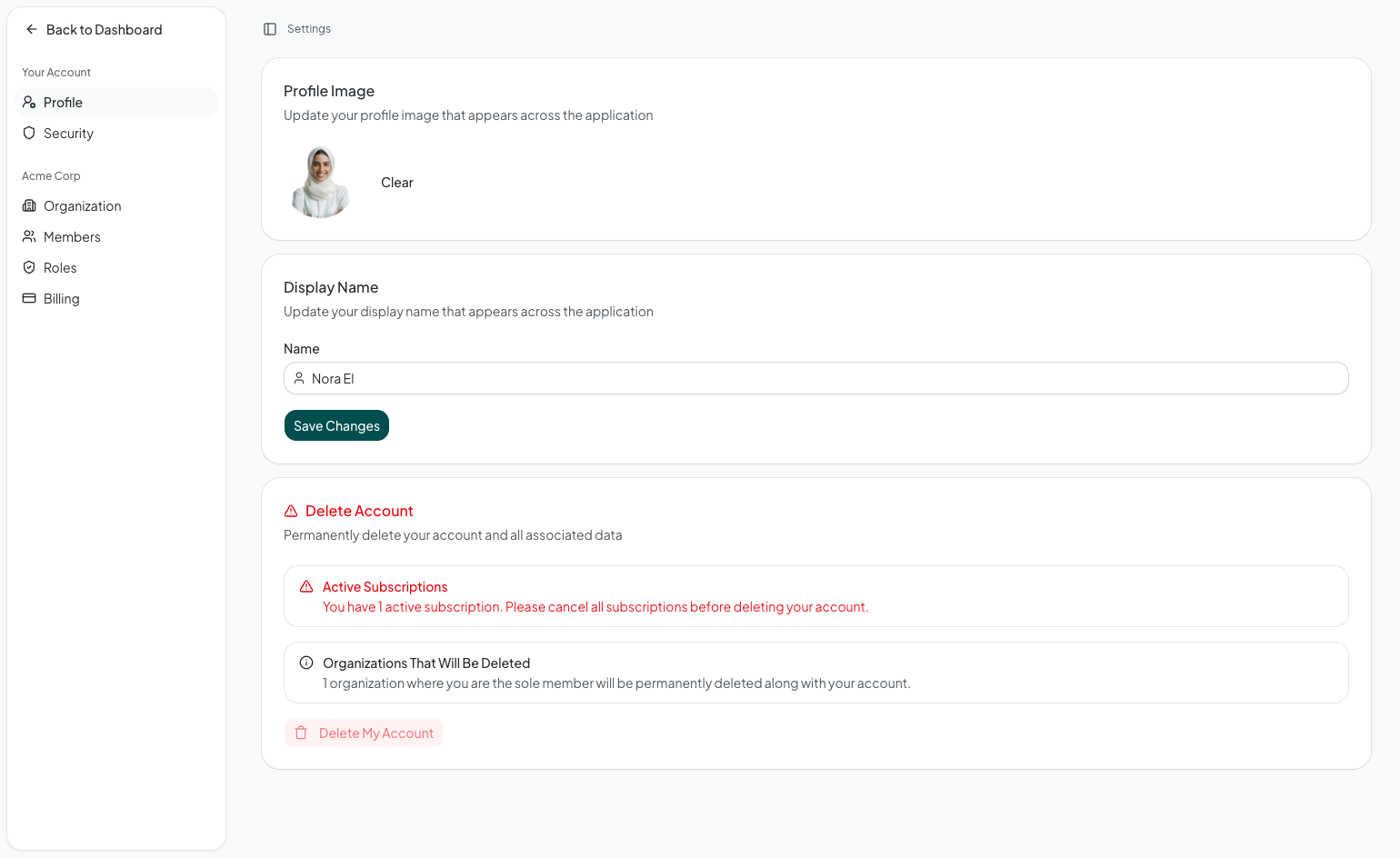
Shawer supports team collaboration through organizations. An organization groups team members together and gives them shared access to bots, settings, and analytics.
Creating an organization
When you first set up Shawer, you can create an organization from the dashboard. Each organization has:
- Name — Your team or company name
- Logo — An image that represents your organization (visible in the interface and branding)
You can update both of these from Settings > Organization at any time.
Inviting team members
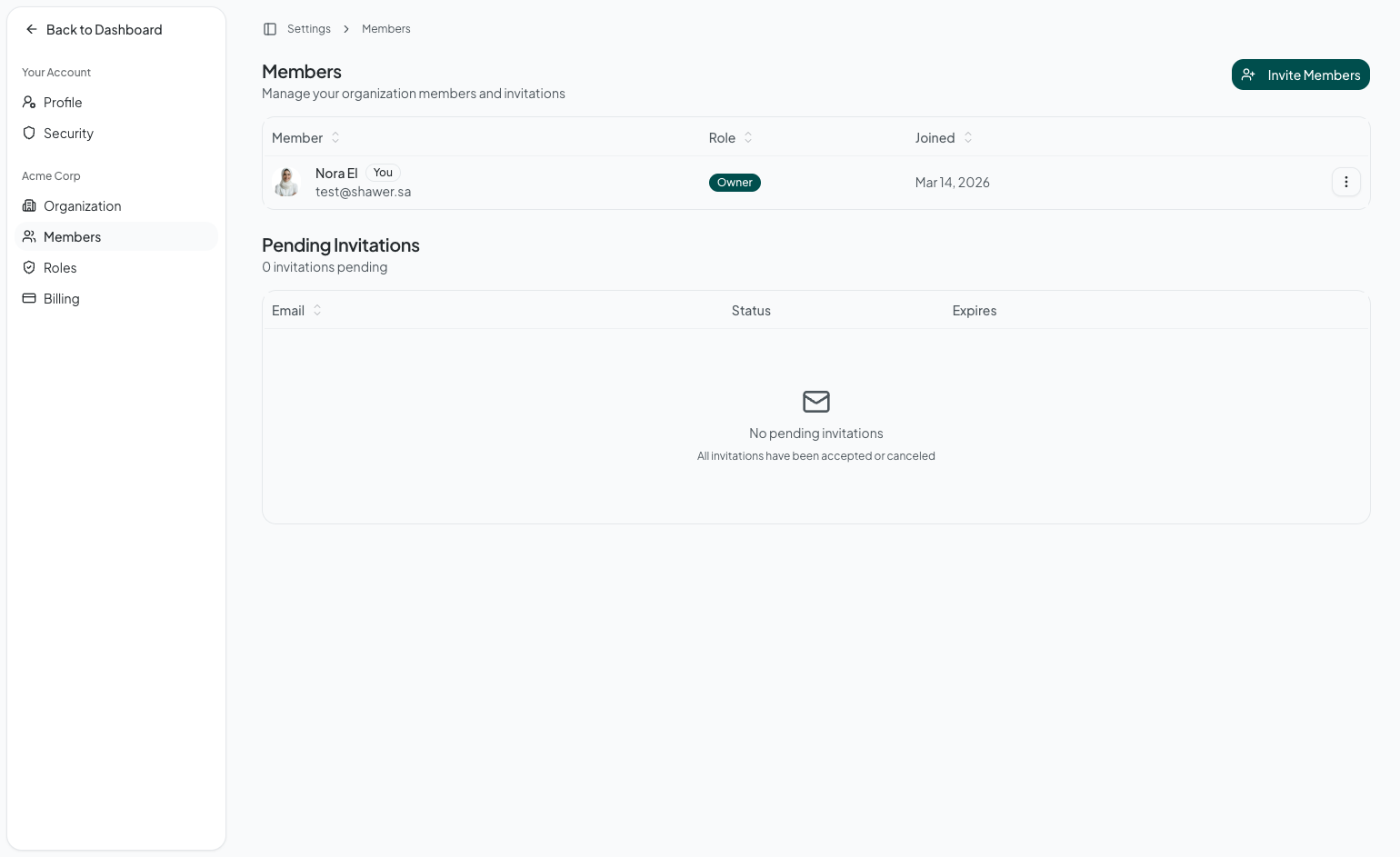
Add team members to your organization so they can help manage bots and content.
- Go to Settings > Members
- Click Invite Member
- Enter their email address and select a role
- They receive an invitation email with a link to join
Pending invitations
The members page shows a separate section for pending invitations. You can:
- Resend an invitation if the original email was missed
- Cancel an invitation if it is no longer needed
Roles and permissions
Team members are assigned roles that control what they can do within the organization.
Roles determine access to:
- Creating and managing bots
- Uploading and managing knowledge base content
- Viewing analytics and conversation logs
- Inviting and managing other team members
- Accessing billing and subscription settings
- Modifying organization settings
The permissions are enforced across the interface — team members only see the pages and actions their role allows.
Bot ownership
Bots in Shawer can be owned at two levels:
Personal bots
Created under your personal account. Only you can access and manage them.
Organization bots
Created under your organization. All team members with the appropriate role can access, configure, and manage them.
When you create a bot, it is automatically assigned to your current context — personal or organization. You can see which context you are working in from the dashboard header.
Switching between contexts
If you have both personal bots and organization memberships, you can switch between them from the account menu. Each context has its own set of bots, settings, and billing.
Organization settings
From Settings > Organization, you can:
- Update the organization name — Change how your team appears across the platform
- Update the logo — Upload a new image for branding
- Delete the organization — Only the organization creator can do this. This permanently removes the organization and all associated data
Security settings
Each team member manages their own security from Settings > Security:
- Change password — Update login credentials
- Two-factor authentication — Enable additional security for sign-in
- Connected accounts — Link or unlink OAuth providers (e.g., Google sign-in)